
Connections
Before creating replication jobs, configure connections for the source and target systems your pipelines will use. Connections store authentication and endpoint settings for cloud drives and FTP sites, databases and ODBC drivers, messaging platforms, and HTTP/S endpoints.
Create each connection once and reuse it across as many jobs as needed. Because connections are managed centrally, updating a connection applies to every job that references it.
Supported Connections
Cloud agents support most of the connection types available to self-hosted agents, but not all. The following table compares the connection types supported by each deployment option.
| Connection Type | Cloud-Hosted | Self-Hosted |
|---|---|---|
| HTTP/S Connections | All | All |
| Relational | SQL Server, MySQL, Snowflake, PostgreSQL, Fabric | All |
| Messaging (*) | Azure Service Bus, Azure Event Hub, AWS SQS, Kafka, Google PubSub (producers only) | All |
| Big Data | All | All |
| Drive | AWS S3, Google Drive, Azure Blobs, FTP/S, SFTP | All |
(*) Messaging consumers are available only on self-hosted DataZen agents. You can bridge a self-hosted agent and a cloud-hosted agent when a consumer is required.
Managing Connections
You can manage connections with two tools, depending on how your agent is hosted:
- Web Portal — manage connections for cloud-hosted agents directly in your browser.
- DataZen Manager — a desktop application that manages both self-hosted and cloud-hosted agents.
Because the Web Portal targets cloud agents, the connection types and options it exposes can differ from DataZen Manager, which offers the full set of options available to self-hosted agents. Connections are stored in the DataZen internal database and encrypted with AES using a Key Encryption Key (KEK). Your license may also limit how many connections you can create; a warning is shown when that limit is reached.
Using the Web Portal
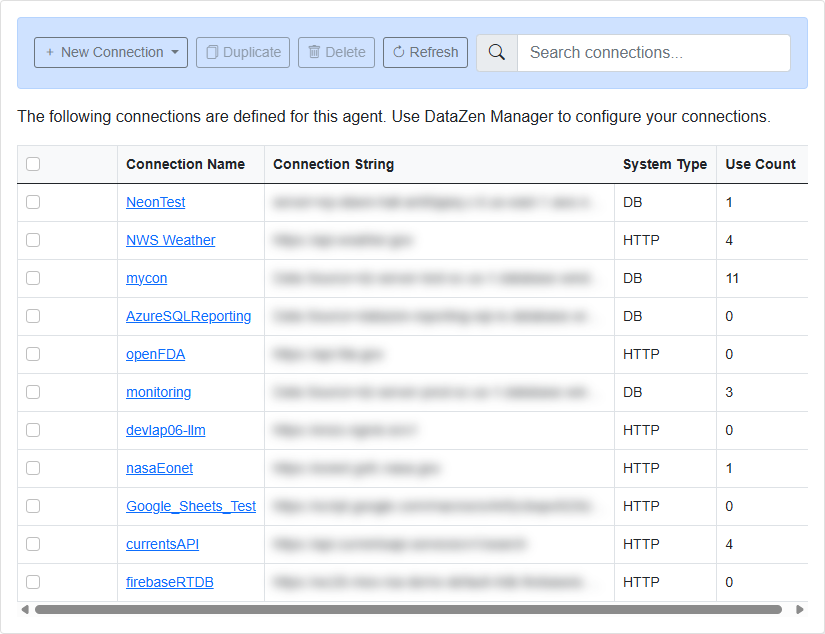
Open the agent in the Web Portal and choose Configuration → Connections to review the connections defined for that cloud agent. Use New Connection to add one, or select a connection to duplicate, edit, or delete it. The Use Count column shows how many pipelines reference each connection, and the search box filters the list by name.
Using DataZen Manager
Use DataZen Manager to create, edit, and maintain connections for the selected agent, whether it is self-hosted or cloud-hosted. DataZen Manager exposes the full set of connection types and advanced options.
Create a Connection
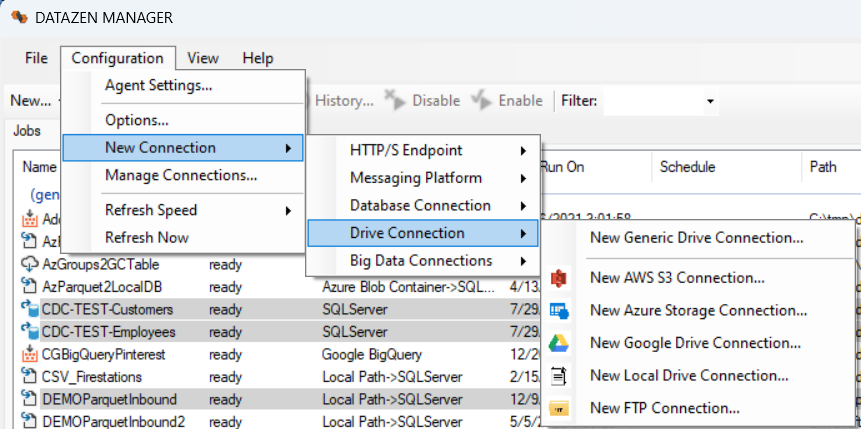
Select Configuration → New Connection → ... and choose the connection type that matches your source or target system. You can create connections for:
- HTTP/S endpoints — SaaS and PaaS APIs, including OAuth 2.0, with a maintained list of pre-configured endpoints
- Relational databases — most databases when a 64-bit ODBC driver is available
- Drives and FTP sites — AWS S3, Azure Blobs, Google Drive, FTP/S, SFTP, and local drives
- Big data and NoSQL databases — Google Cloud BigQuery and Azure Cosmos DB
- Messaging platforms — producers and consumers across supported messaging systems
Manage or Edit a Connection
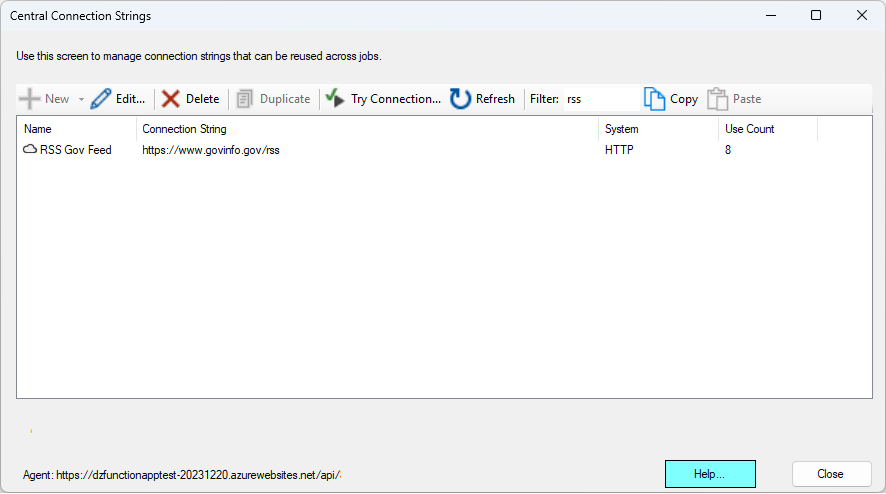
Select the agent that owns the connections, then choose Configuration → Manage Connections.... From this screen you can add, duplicate, edit, or delete connections.
- Use Count shows how many jobs currently reference a connection.
- Use the Filter box to search by connection name, definition, or System name.
- Administrators can copy and paste connection strings from this screen when needed.
Because connections are shared, review the use count before changing credentials or deleting a connection used by active jobs.