
Pipelines as Tools
DataZen lets data engineers build governed pipelines, expose them as MCP Tools, and test them with a real LLM inside the Portal — before wiring those same tools into an external agent platform such as Claude Desktop, Cursor, or Hermes.
The end-to-end flow is:
- Configure an HTTP/S connection as an AI Endpoint
- Expose a Reader or Direct pipeline as an MCP Tool
- Develop and validate tools in Portal AI Chat
- Connect external agents through JSON-RPC 2.0 (recommended) or the REST-based datazen-pipeline-mcp package
Portal AI Chat is the built-in playground for this loop. When the AI Endpoint and MCP Tools are set up correctly, you can discover tools, call them with natural language, and refine pipeline definitions without leaving the agent portal.
Step 1: Configure an AI Endpoint
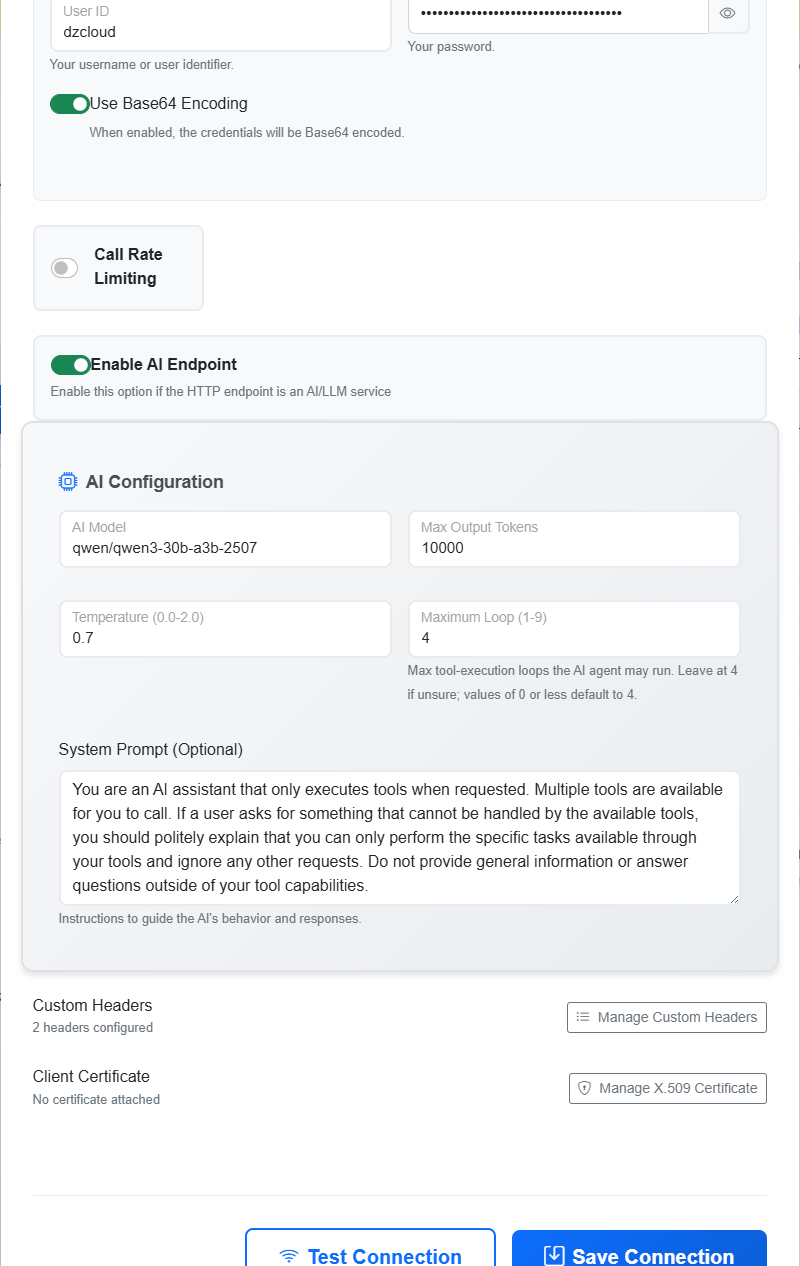
Create or edit an HTTP/S connection that points to your LLM provider or gateway. Enable AI Endpoint and set defaults such as model, max tokens, temperature, maximum tool loops, and system prompt.
These defaults drive Portal AI Chat and can be overridden per session. Full field reference: HTTP Connection: AI Endpoint.
Step 2: Expose a Pipeline as an MCP Tool
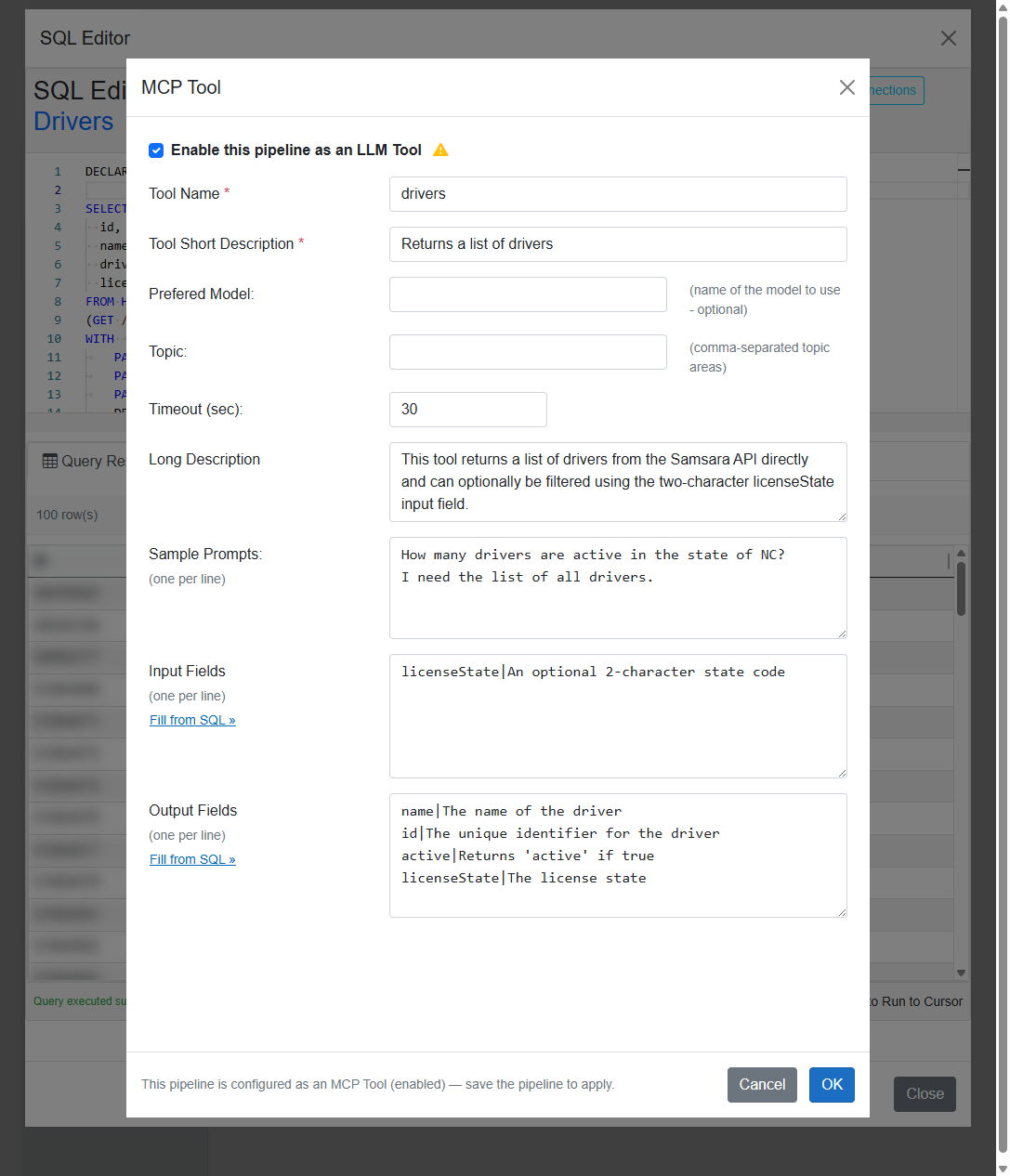
Open a Reader or Direct pipeline in the SQL Editor (Portal or DataZen Manager). Write the SQL
CDC script, declare optional parameters with DECLARE, then click MCP Tool to define the
tool name, descriptions, input fields, and output fields. Enable the pipeline as an LLM tool and save.
Matching DECLARE names to MCP input field names lets the LLM pass filters or arguments into
the script. See MCP Tool for configuration details and a
full example (including optional state-code filtering).
Step 3: Develop and Test in Portal AI Chat
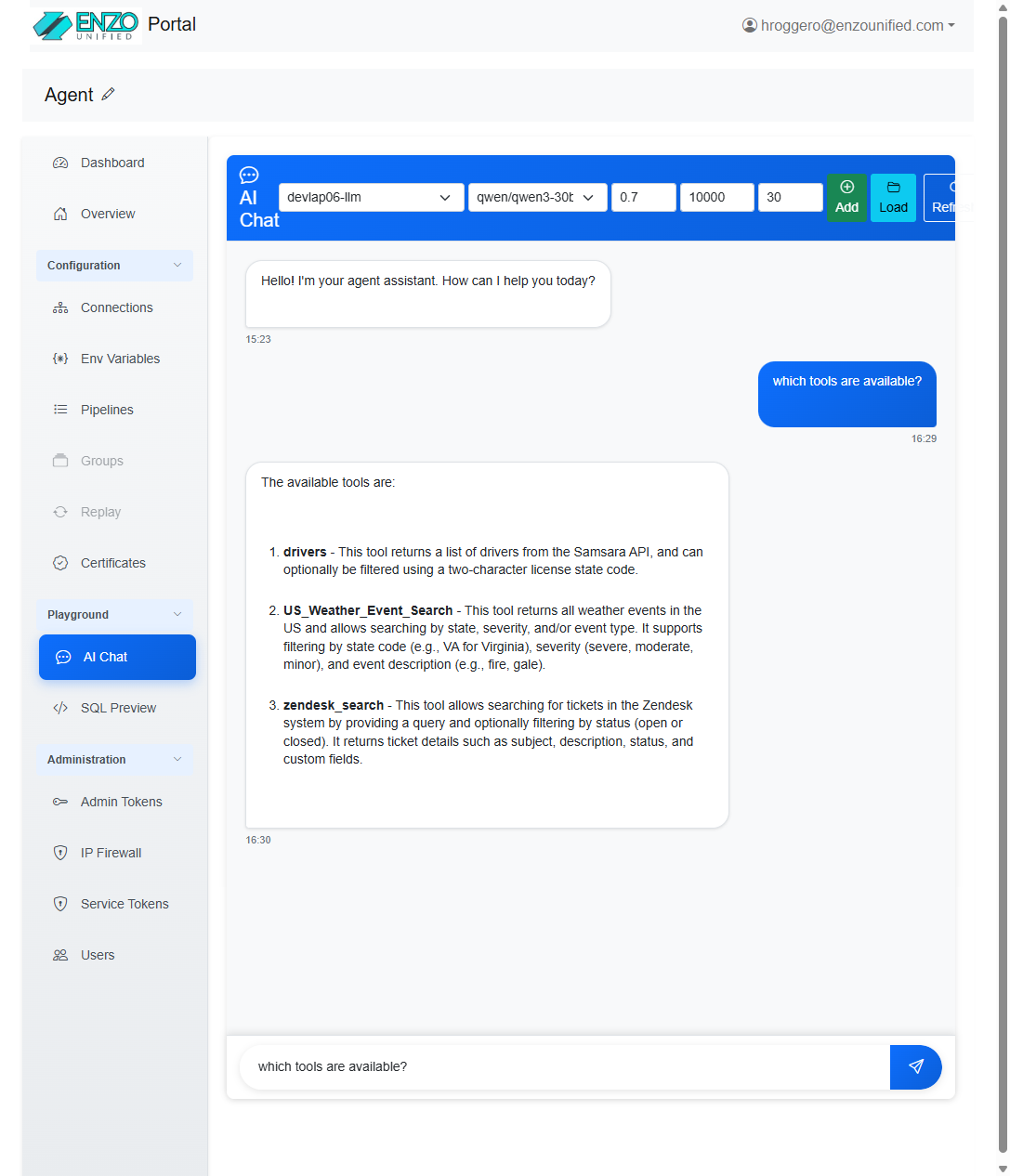
Under Playground → AI Chat, select the AI Endpoint connection and model, then chat with the agent. Ask which tools are available, try sample prompts from the MCP Tool definition, and verify that optional parameters behave as expected.
This step is meant for data engineers: iterate on the pipeline script and tool metadata in the same portal where you test the LLM’s use of those tools. When the conversation and tool results look right, the same MCP definitions are ready for external agents.
drivers).
Step 4: Connect External Agent Platforms
When tools are validated in AI Chat, connect an MCP-compatible AI client such as Copilot, Cursor, or Claude Desktop directly to DataZen using JSON-RPC 2.0. This connection model is supported by both cloud and self-hosted editions and is recommended because it simplifies client configuration: the client connects to DataZen directly without launching a local npm MCP server. See AI Client Remote MCP Settings for terminology, prerequisites, and endpoint formats.
An administrator must issue a security token with the mcp_all scope for the AI client.
- Self-hosted — connect the client to the agent’s
/mcpendpoint. - iPaaS (cloud) — connect the client to
{agentid}/api/mcp, using the appropriate agent id.
REST-Based Alternative
The open-source datazen-pipeline-mcp package remains available when a REST-based connection is preferred. It is a local stdio MCP server that the client launches; the server then authenticates to the DataZen REST API with a Service Token.
Cloud and self-hosted npm configuration examples, credential locations, Service Token scopes, and REST URL rules are documented in AI Client NPM Settings.
For Hermes using the REST-based alternative, register datazen-pipeline-mcp and its environment variables in the
mcp_servers block of the Hermes config (YAML), preferably with
${VAR} placeholders and real values in $HERMES_HOME/.env. Refresh behavior and
additional client options are on the
npm package page.
After the client connects through either model, the tools you built and tested in Portal AI Chat appear in
the external agent. Updates to pipeline MCP definitions refresh automatically (clients that honor
tools/list_changed need no restart).
Related Topics
- AI & Agentic Overview
- AI Client Remote MCP Settings — recommended Streamable HTTP / JSON-RPC 2.0 connection.
- AI Client NPM Settings — npm-based REST server environment variables and where to find credentials.
- MCP Tool — pipeline tool configuration and DECLARE parameters.
- HTTP Connection: AI Endpoint — connection defaults for AI Chat and tool loops.
- DataZen API Tools — agent control-plane MCP tools.
- AI-Generated SQL CDC — language-spec MCP for script generation.
- CALL AGENT — call an external LLM from a SQL CDC script.
- Security Overview — security tokens and the
mcp_allscope for JSON-RPC 2.0 clients.