
MCP Tool
A Reader or Direct pipeline can be exposed as an MCP Tool so an LLM can call the pipeline during AI Chat or through other agent workflows. The tool returns the pipeline result set (and optional metadata) according to the tool definition you configure.
Configure an HTTP/S connection as an AI Endpoint before using MCP Tools in AI Chat. See HTTP Connection: AI Endpoint.
Known limitations. MCP Tools currently execute as SQL CDC Preview operations and not as full
pipelines. Preview operations bypass CAPTURE and PUSH operations, do not update
the Last Run On date, and do not update high watermarks. Some of these limitations will be lifted in the future.
Securing Tools Access. Users can assign one or more topics to an MCP Tool (comma-delimited). These
topics can then be specified when creating
Service Tokens, which limits which MCP Tools an AI agent can
discover and call. Selecting * on a Service Token allows all topics and therefore all MCP Tools.
When to Use MCP Tools
MCP Tools let governed DataZen pipelines answer questions or take action with live data instead of exposing source systems directly to an LLM. Typical uses include:
- Returning operational metrics or lists (for example drivers, orders, or inventory)
- Accepting optional input parameters to filter or shape the response
- Combining HTTP, database, and SQL CDC transforms already defined in the pipeline
Reader pipelines return query results. Direct pipelines can also be exposed when the read portion of the script defines the tool output.
Web Portal
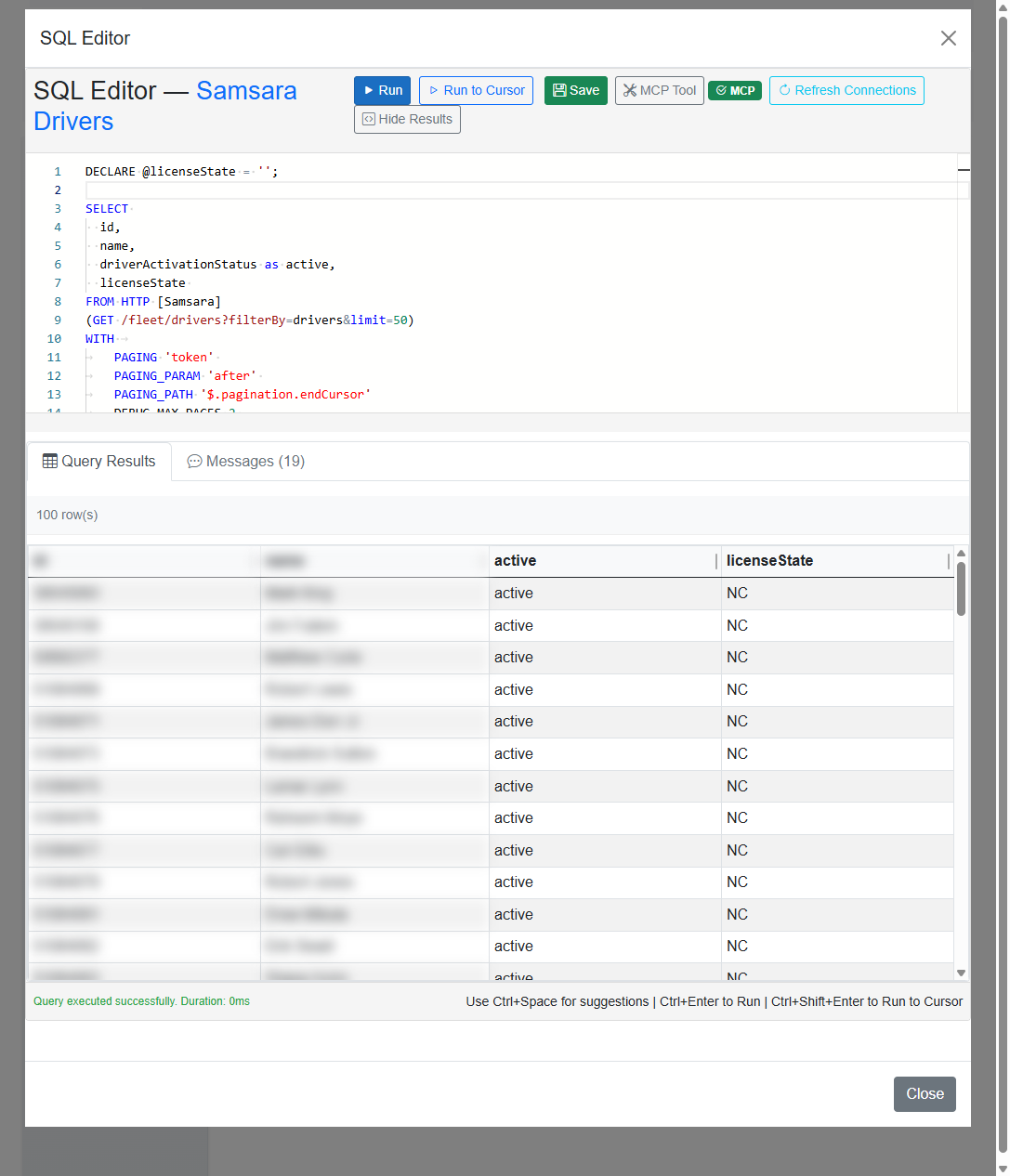
For cloud agents, open Configuration → Pipelines, select a Reader or Direct pipeline, and open the SQL Editor. Use Run to validate the script and preview results. Click MCP Tool to define how the pipeline is exposed to the LLM, then Save the pipeline to apply the tool definition.
When MCP Tool configuration is enabled, the editor toolbar shows an MCP indicator on the pipeline.
MCP Tool Configuration
The MCP Tool dialog defines how the LLM discovers and calls the pipeline. Required fields are Tool Name and Tool Short Description. Optional settings include preferred model, topic tags, timeout, long description, and sample prompts that help the LLM decide when to call the tool.
Input Fields and Output Fields describe tool parameters and result columns. Use one field per
line in the form name|description. Click Fill from SQL to seed field lists from the
current script.
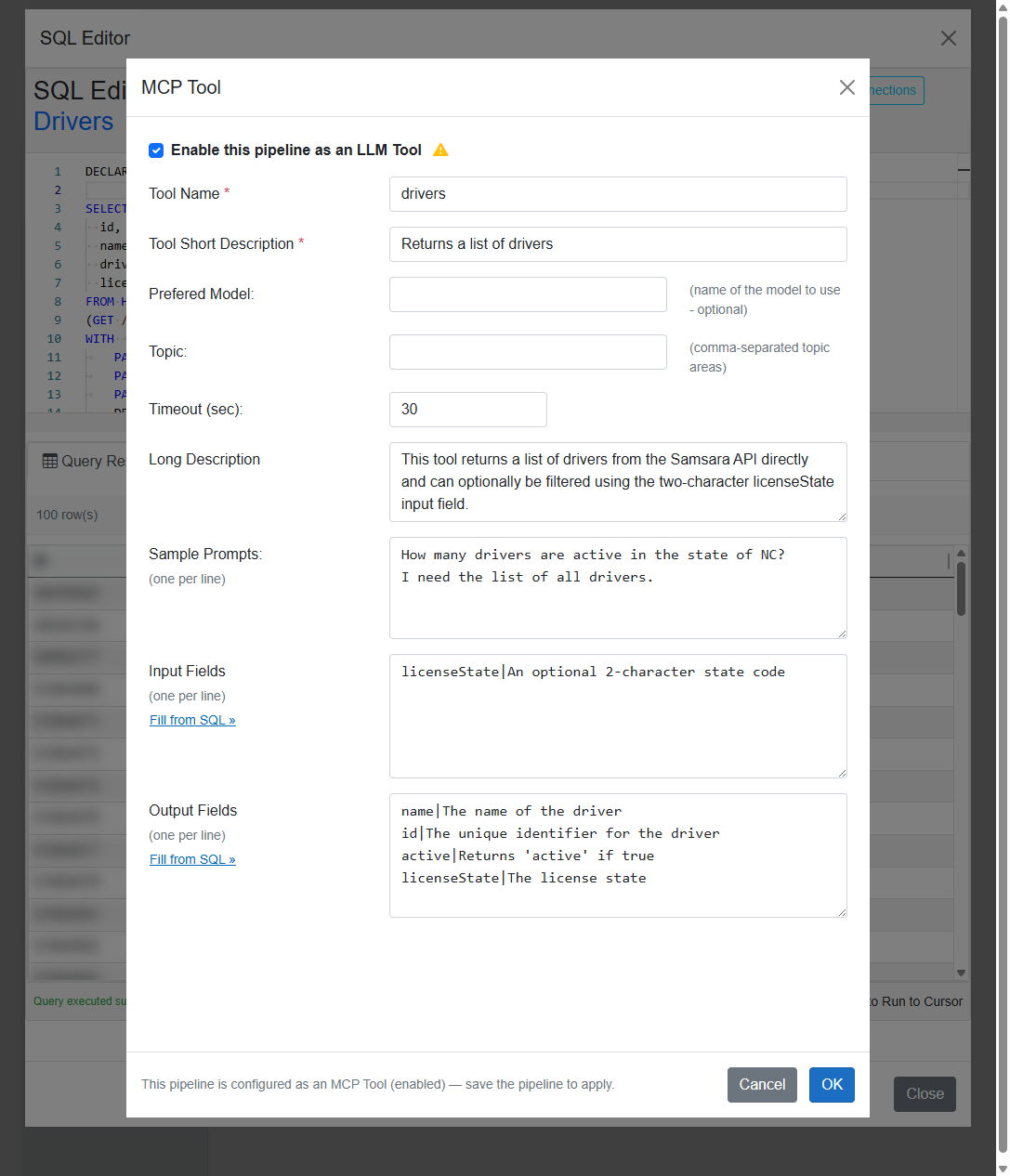
drivers tool with optional
licenseState input.
Linking DECLARE Parameters to MCP Inputs
Declare script parameters with DECLARE (or DECLARE PARAM) at the top of the SQL
CDC script. When an MCP input field uses the same name as the declared variable (without the
@ prefix), DataZen injects the LLM-provided value when the tool runs.
In the example below, the optional MCP input licenseState is linked to
@licenseState. An empty value returns all drivers; a two-character state code filters the
result set.
DECLARE @licenseState = '';

SELECT
  id,
  name,
  driverActivationStatus as active,
  licenseState
FROM HTTP [Samsara]
(GET /fleet/drivers?filterBy=drivers&limit=50)
WITH
	PAGING 'token'
	PAGING_PARAM 'after'
	PAGING_PATH '$.pagination.endCursor'
	DEBUG_MAX_PAGES 2
APPLY TX 'data'
;

IF (LEN('@licenseState') > 0)
BEGIN
  APPLY FILTER ([licenseState] = '@licenseState');
END;
Add matching entries to Input Fields in the MCP Tool dialog (for example
licenseState|An optional 2-character state code). Describe output columns under
Output Fields so the LLM understands the returned data.
Use IF blocks, APPLY FILTER, and other SQL CDC operations to apply optional MCP
parameters only when the caller supplies a value. Provide default values in DECLARE so preview
and debugging work without tool input.
DataZen Manager
For self-hosted agents, open the job in DataZen Manager and edit the SQL CDC script from the job details panel. The same MCP Tool button is available in the SQL Editor. Configure tool name, descriptions, input and output fields, and enable Enable this pipeline as an LLM Tool, then save the job.
Manager and Portal use the same MCP Tool definition stored with the pipeline. After changing tool settings in either UI, save the pipeline (or job) so AI Chat and external agents pick up the updated definition.
Configuration Reference
| Setting | Description |
|---|---|
| Enable this pipeline as an LLM Tool | Turns MCP Tool exposure on or off for the pipeline. |
| Tool Name | Short identifier the LLM uses to call the tool (for example drivers). |
| Tool Short Description | One-line summary shown to the LLM in the tool list. |
| Preferred Model | Optional model override for calls that use this tool. |
| Topic | Optional comma-separated tags that group related tools. |
| Timeout (sec) | Maximum seconds allowed for a tool invocation. |
| Long Description | Extended guidance for when and how the LLM should use the tool. |
| Sample Prompts | Example user questions (one per line) that should trigger this tool. |
| Input Fields |
Tool parameters as name|description. Names should match
DECLARE variables in the script.
|
| Output Fields |
Result columns as name|description. Helps the LLM interpret pipeline output.
|