Group Pipelines
Groups are currently under evaluation and are considered in containment. Instead of Groups, consider using a
headless pipeline with one or more START operations, which provides more flexibility. See
Headless Pipelines.
A group is a pipeline that contains any number of child pipelines. Groups are meant to be used as containers, but they are also first-class Read pipelines themselves — without performing a source read. Like other pipelines, a group can be enabled or disabled, scheduled, and configured with triggers.
Manage groups from DataZen Manager for self-hosted agents, and from the Web Portal for cloud agents. A group can be started manually or on schedule, cancelled as a unit, and monitored through a summary status of its child pipelines.
A group cannot contain other groups. A child pipeline can belong to only one group.
Adding Job Writers to a group is not supported.
Parallel vs Sequential Execution
A group can behave as either a parallel or a sequential execution container, depending on whether a Startup Pipeline is selected:
- Sequential — if a child pipeline is marked as the Startup Pipeline, the group starts with that pipeline. The administrator is then responsible for sequencing the remaining pipelines with Triggers.
- Parallel — if no Startup Pipeline is selected, all child pipelines in the group that are Active, not already running, and not themselves triggered from within the group start at roughly the same time.
Sequential groups do not automatically chain every child pipeline. After the Startup Pipeline begins, use triggers to decide which pipelines run next and under which conditions.
Starting and Status
A child pipeline can still be started on its own, independently of the group. The group status shows as Running only when the group itself was started. Once started, the group remains in a running status for as long as any child pipeline is running.
When a pipeline belongs to a group, its own cron schedule is ignored; the group schedule controls when the group starts its children. Individual timeout settings may still exist on child pipelines, but the group timeout takes precedence. When the group timeout expires, any child pipelines that have not completed are cancelled.
Using DataZen Manager
Create a Group
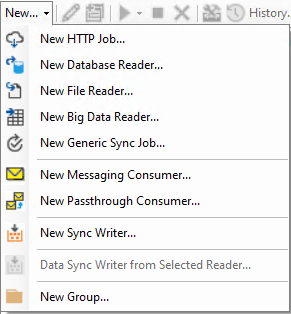
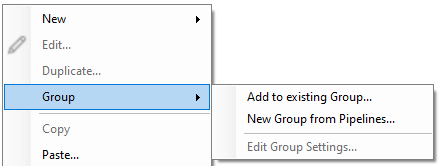
To create a group, use New → Group, or right-click in the jobs region and choose New → New group.... You can also select one or more pipelines, right-click, and choose Group → Create group from pipelines....
Settings
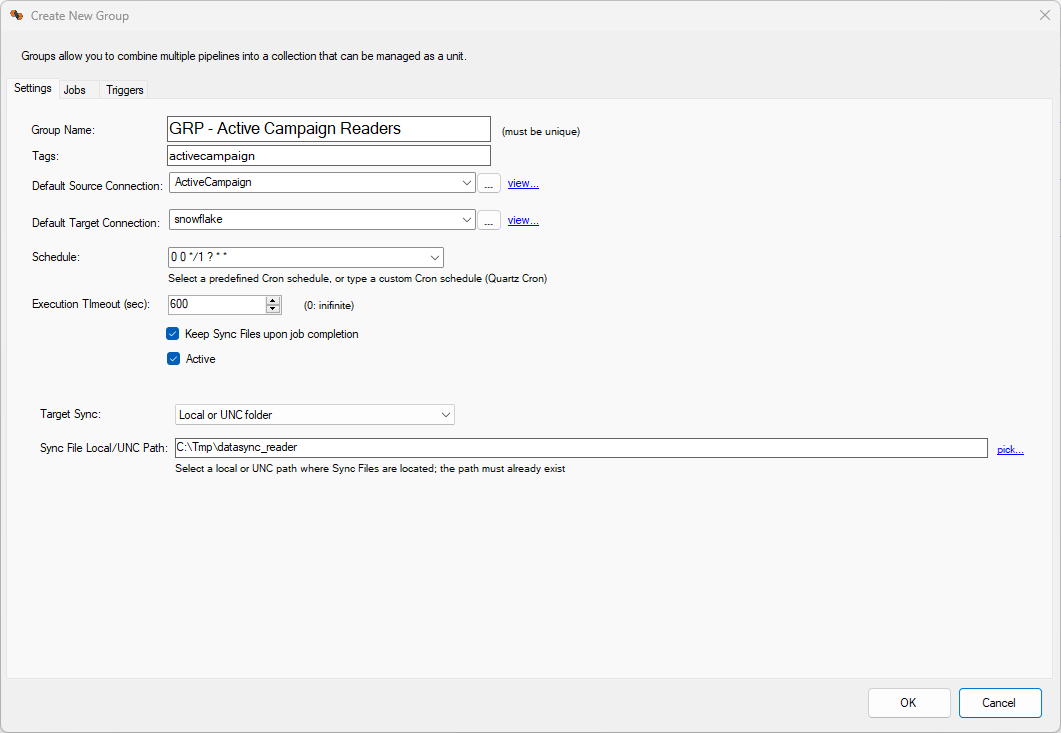
- Source/Target Connections — default connections used when creating a new child pipeline inside the group. They do not override existing child pipeline connection settings; each child may use different connections.
- Schedule — overrides any child-specific schedule. When the group is Active and has a schedule, the group starts according to that schedule. Whether children then run in parallel or sequentially depends on the Startup Pipeline setting.
- Execution Timeout — overrides individual child timeouts. Any child that has not completed when the group timeout expires is cancelled. A value of 0 means the group can run indefinitely.
- Keep Sync Files — default option used when creating new child pipelines in the group. Individual children can override it.
- Active — an inactive group cannot be started on schedule or manually. Active child pipelines can still be started individually.
- Sync File Location — default option used when creating new child pipelines in the group. Individual children can override it.
Jobs
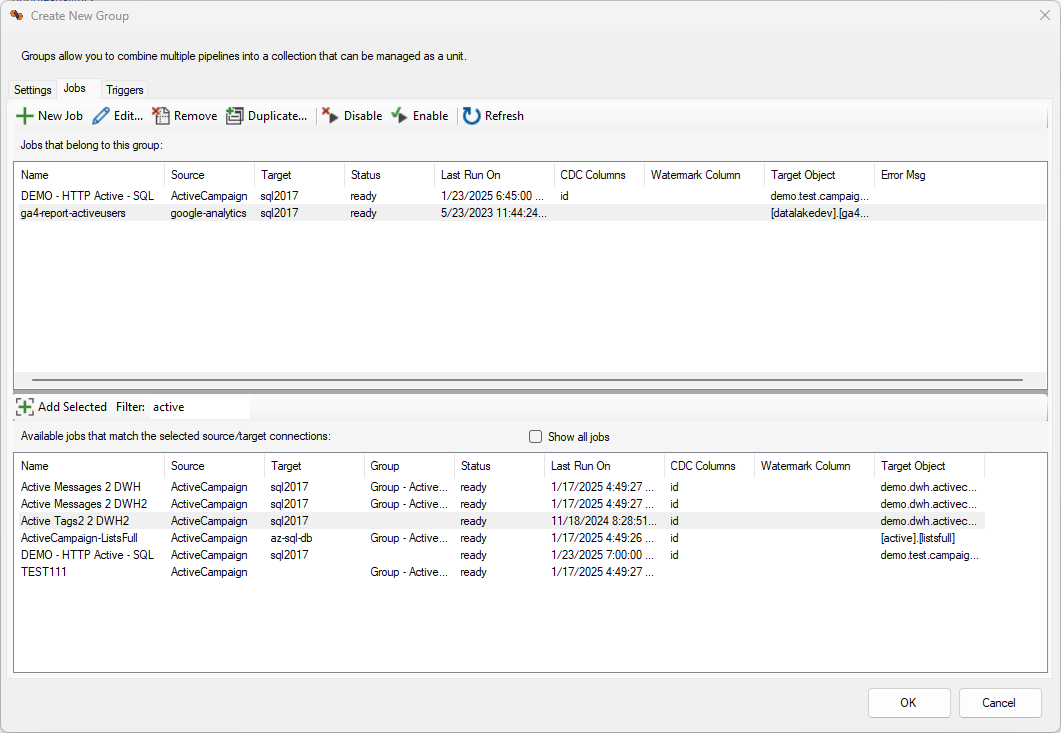
The top section lists the pipelines currently assigned to the group (child pipelines). From this screen you can create new pipelines using the default settings from the Settings tab, and enable or disable children individually.
The bottom section lists available pipelines. By default, only pipelines that use the same source connection are shown; check Show all jobs to list all pipelines.
Adding Job Writers to a group is not supported, so only eligible Reader and Direct pipelines appear for assignment. A pipeline can belong to only one group. Pipelines that already belong to another group may still appear in the available list; moving them into the selected list reassigns them to this group.
Triggers
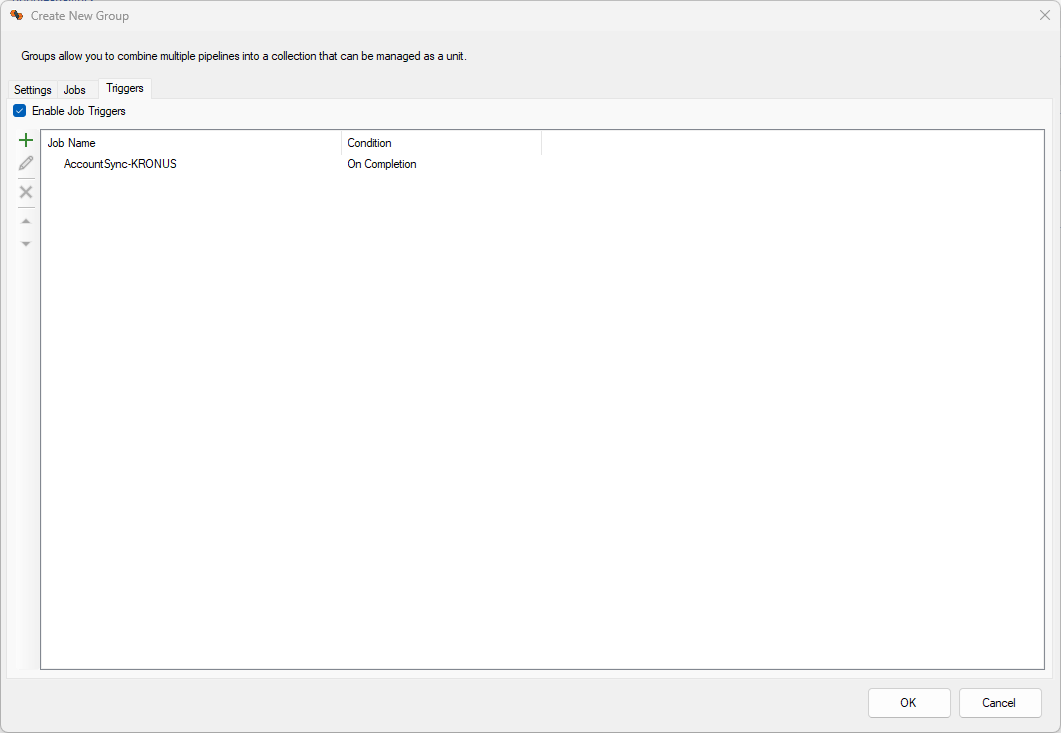
Group triggers run when the entire group completes:
- If any child fails, the group runs its On Error triggers.
- If all children succeed, the group runs its On Success and On Success (with data) triggers.
- If at least one child reports available records and all children succeeded, the group also runs On Success (with data).
If the group execution times out, the group is treated as failed and On Error triggers run. Depending on the cloud agent SKU, limits may apply to the number of triggers that can execute.
Monitor a Group
Double-click a group to open its monitoring window. The window lists the child pipelines currently assigned to the group. You can open multiple group monitoring windows at the same time.
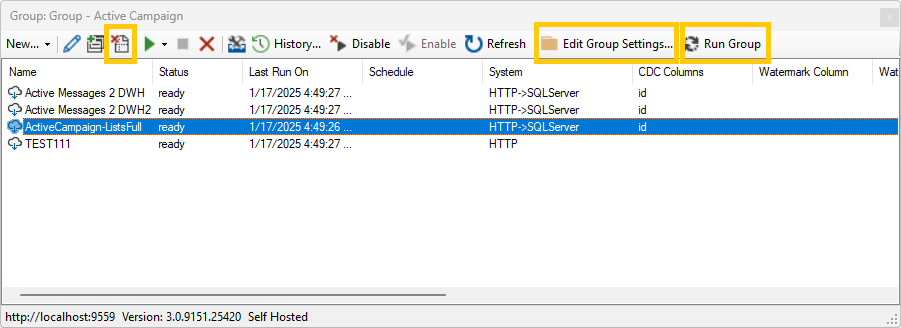
Child pipelines in this screen can be managed like other pipelines, including enable/disable and start/stop independently of group execution. Additional options include:
- Remove a job — unassigns the pipeline from the group without deleting it, and removes it from the monitoring screen.
- Edit group settings — opens the group settings screen to change scheduling, membership, and triggers.
- Start group execution — starts the group. With no Startup Pipeline selected, eligible active children start at roughly the same time. With a Startup Pipeline selected, that pipeline starts first and remaining sequencing is handled by triggers.
Assign Existing Jobs
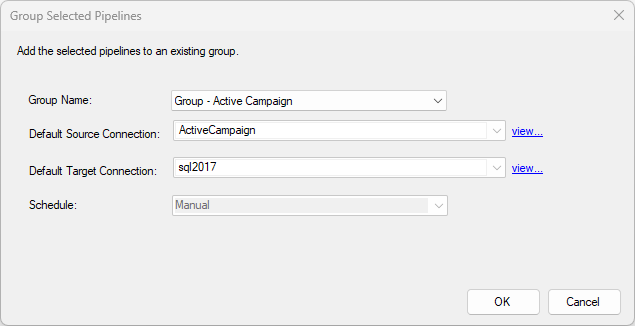
From the main pipelines list, select one or more eligible pipelines, right-click, and choose Group → Add to existing group.... Choose the target group and click OK. The assignment screen is read-only aside from selecting the destination group.